



Request, approve, manage time off — here’s how it works with Fritto
Fritto is set up, your team is on board — now it’s time for the day-to-day. This post walks you through exactly how an employee requests time off, how managers approve or decline requests, and how colleagues with the right access can submit requests on someone else’s behalf.
The most common way time off gets requested in companies: an email. It lands in the wrong inbox, gets approved but never recorded — and by the end of the month, nobody knows how many days are left. With Fritto, it works differently. The entire process — from request to approval — happens in one place. Transparent, traceable, and without the back-and-forth.
Requesting time off — as an employee
As an employee, you submit your time-off request directly in Fritto. It takes less than a minute.
Step 1: Log in to Fritto and navigate to Time Tracking
Open Fritto and sign in with your credentials. Then navigate to the Time Tracking section and click “New record”.
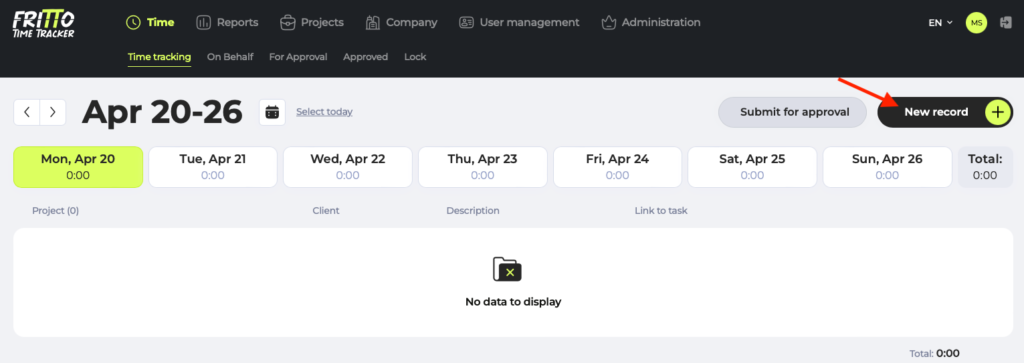
Step 2: Select project and day
Choose the project or task called “Vacation” and select the day you want to take off. Then click “Save”.
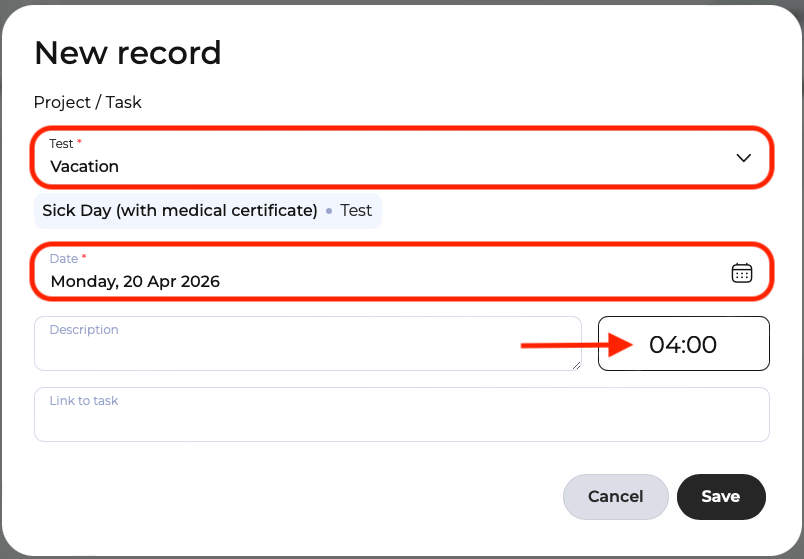
Step 3: Submit the request for approval
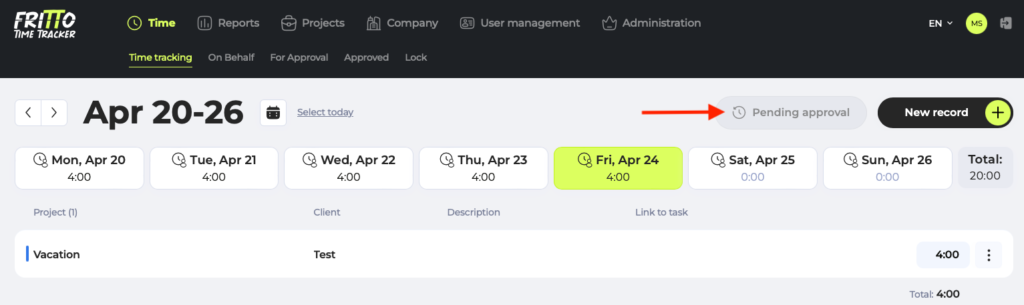
Now click “Submit for approval” to submit the request to your manager for approval.
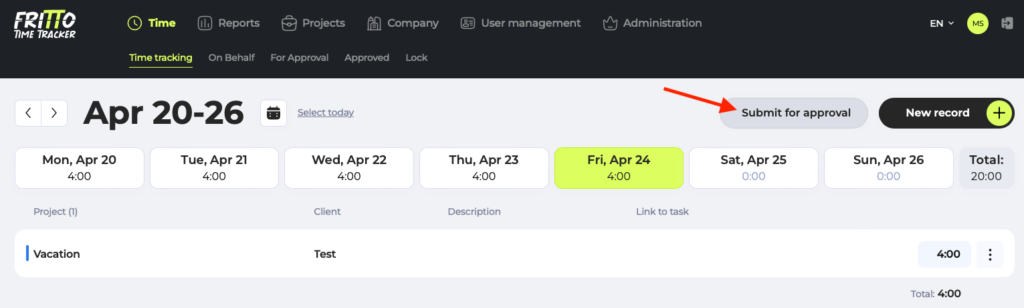
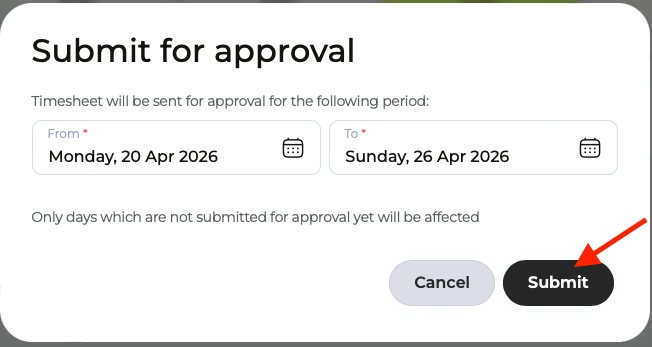
Step 4: Request is now pending
Your request is now under review. You’ll be notified as soon as your manager has made a decision.
Approving or declining requests — as a manager
As a manager, you see all open time-off requests from your team at a glance. You don’t have to go looking — the requests come to you.
Step 1: Navigate to the approval overview
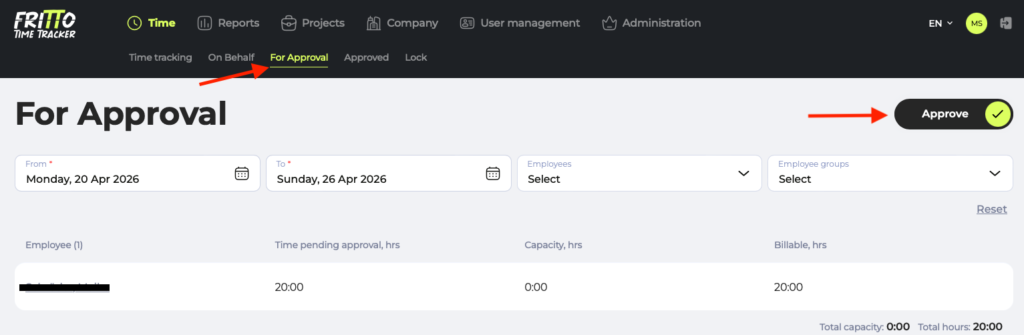
Open the “For Approval” section in Fritto. Here you’ll find all submitted requests, sorted by employee and time period. Open a request to review the dates — Fritto also shows you which other team members are absent during the same period, so you can keep track of capacity.
Step 2: Approve or decline
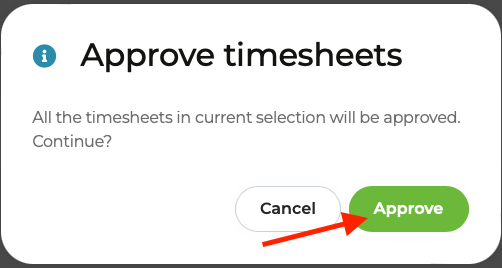
With one click, you approve or decline the request. The employee is notified immediately — and the calendar updates automatically.
Step 3: Revoke an approval after the fact
Open the “Approved” section in Fritto. Here you’ll find all approved requests, sorted by employee and time period. Use the “Decline” button to revoke a previously approved request.
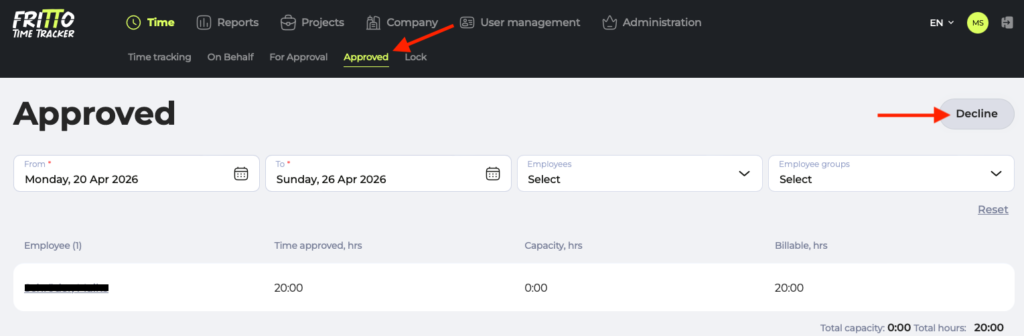
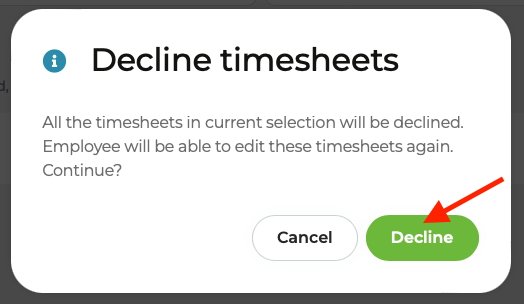
Once a request is declined, it stays documented in the system — including a timestamp. The entire process remains traceable, even months later.
Submitting on behalf of someone — for colleagues with access rights
Sometimes an employee isn’t able to submit their own request — for example, if they’re unexpectedly sick or don’t have access. In that case, colleagues with the appropriate permissions can submit a request on their behalf.
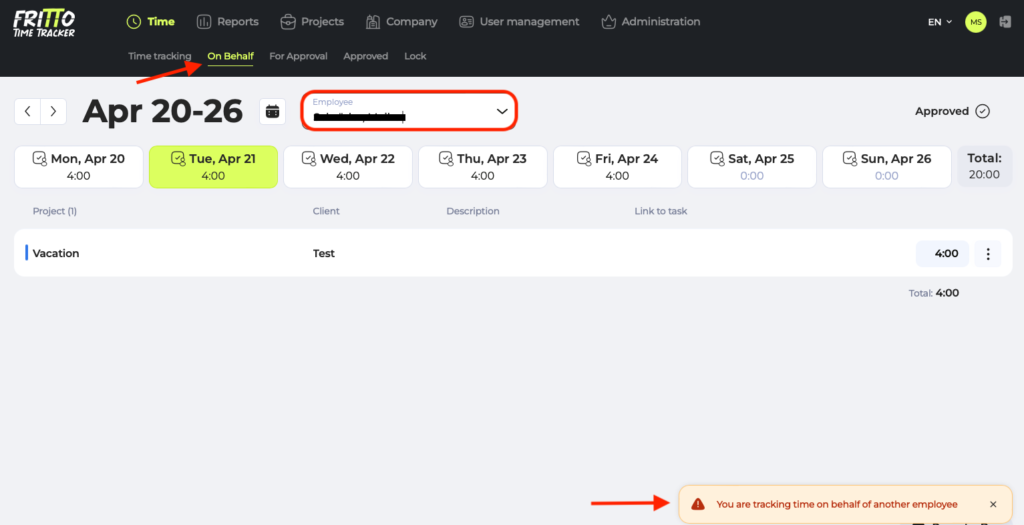
Navigate to the “On Behalf” section in Fritto. This section is only visible to users with the relevant access rights. Select the employee you’re submitting for — you’re now logging an entry on their behalf.
Less back-and-forth. More clarity.
Time-off requests by email, approvals over chat, calendars in Excel — that’s the old way. With Fritto, the entire process runs in one place. Everyone knows who’s in and when. No request gets lost. And HR has all the data they need at the end of the month.
Want to learn more about the different absence types Fritto supports and why clean categorisation matters for payroll? Check out our earlier article: All in one place: How to track absences properly with Fritto
Setting up Fritto takes two minutes. Really — give it a try.
The first user is free, every additional user costs €3 per month. Your data stays in Germany.